
Connect Pipedrive to CleanSmart
Import your Pipedrive Persons and Organizations into CleanSmart for cleaning. You approve the connection on Pipedrive's own authorization screen, so there's no API token to copy. Setup takes about five minutes.
What you'll need
- A CleanSmart account with integration permissions
- A Pipedrive login with access to the Persons and Organizations you want to clean
- That's it. Pipedrive handles the approval, so you don't need an API token
Setup steps
Open the Pipedrive integration card
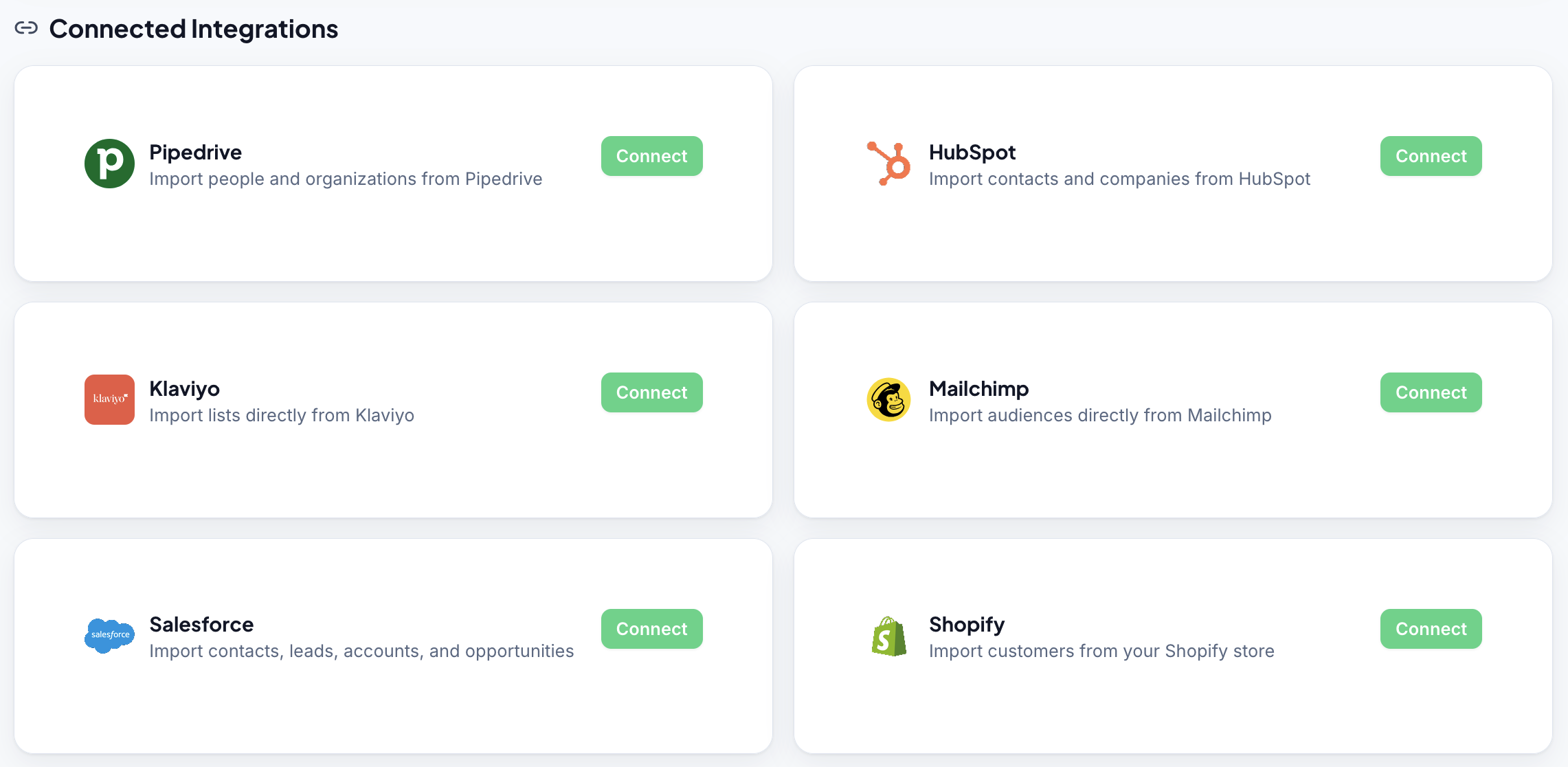
In CleanSmart, go to Import & Sync and find the Pipedrive card. Click Connect.
Approve access in Pipedrive
CleanSmart sends you to Pipedrive. Sign in if asked, review the access CleanSmart is requesting, and approve it. Pipedrive sends you back to CleanSmart, where the card shows Connected to your Pipedrive company name.
Choose Persons or Organizations and import
Under Pipedrive Objects, CleanSmart shows how many Persons and Organizations your account has. Click Import next to the one you want to clean.
Map your data fields
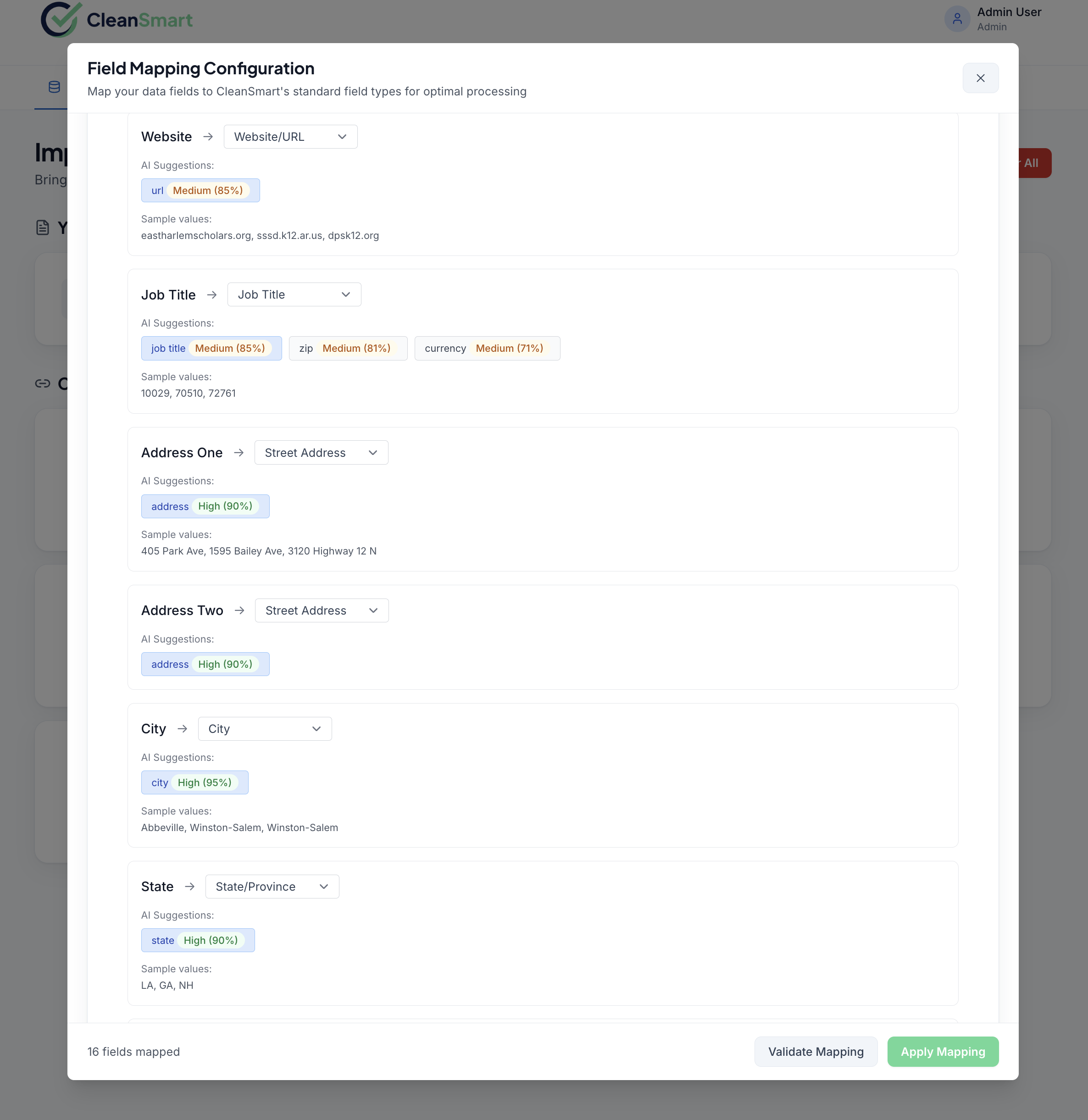
Click Map Data. CleanSmart detects field types and suggests mappings for name, email, phone, company, and address columns. Confirm or adjust the mapping and click Map Data to finalize.
Clean and export
Your Pipedrive import appears as a data source in CleanSmart. Run it through the cleaning pipeline (dedupe, format, fill, flag), review the changes, and download the clean file from Export. Then import the file back into Pipedrive.
Frequently asked questions
Do I need a Pipedrive API token?
What data does CleanSmart import from Pipedrive?
Does CleanSmart change anything in Pipedrive?
How do I get fresh data after I've already imported?
The card says "Needs reconnect." What happened?
How do I disconnect Pipedrive?
Other connector guides
CleanSmart connects natively to six data sources.