Connect HubSpot to CleanSmart
Import your HubSpot Contacts and Companies into CleanSmart for cleaning, then download the cleaned records and a change log from the Export step. Setup takes under 10 minutes using a HubSpot Private App Access Token.
What you'll need
- A CleanSmart account with administrative access
- A HubSpot account (any tier)
- A HubSpot Private App Access Token — how to create one
Setup steps
Open the HubSpot integration card in CleanSmart
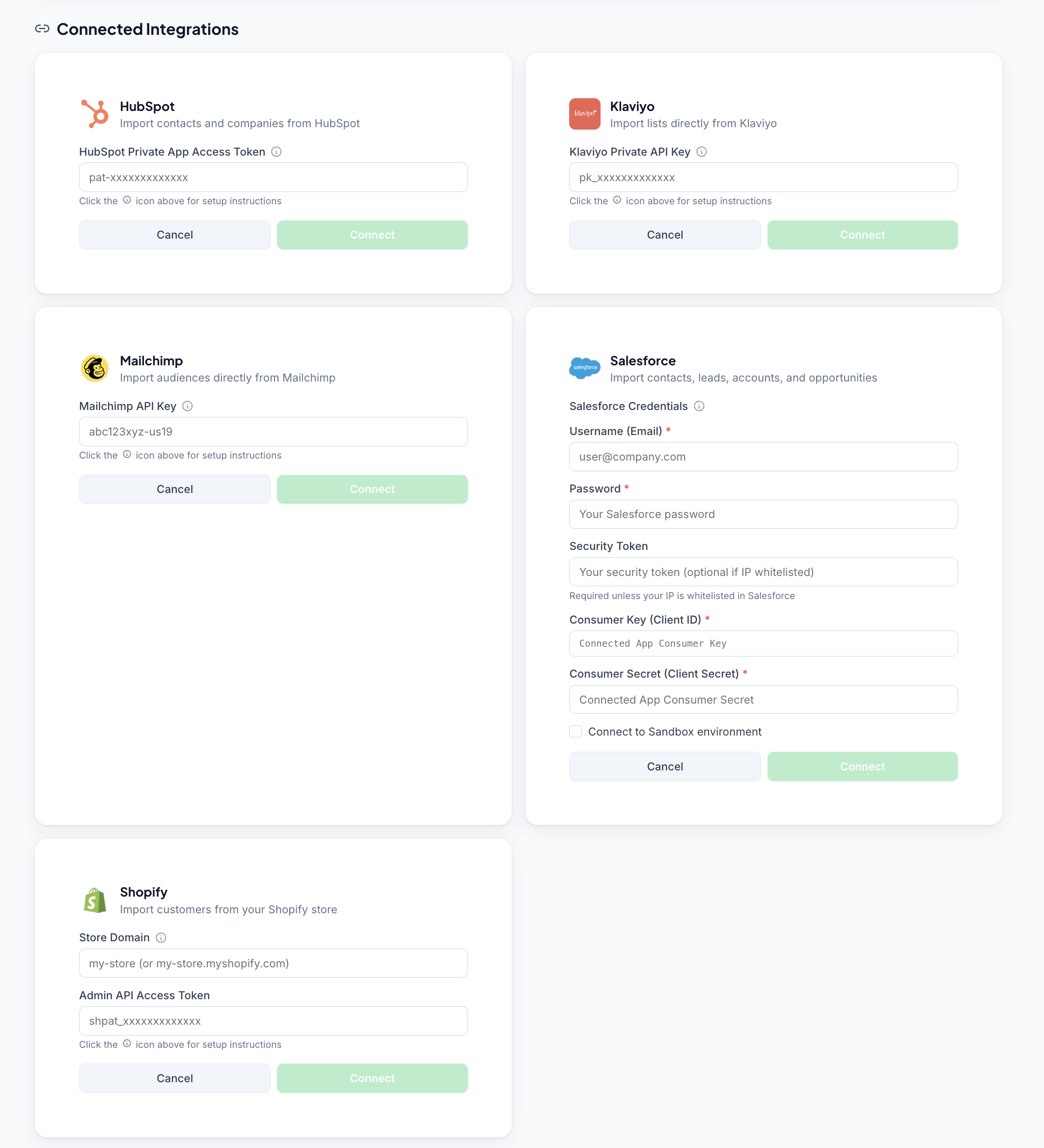
In CleanSmart, navigate to Import & Sync. You'll see a card for each available connector. Find the HubSpot card and click Connect. The card expands to reveal the token input field.
Generate a HubSpot Private App Access Token
In HubSpot: go to Settings → Integrations → Private Apps, create a new private app, and enable the crm.objects.contacts.read and crm.objects.companies.read scopes. Copy the access token.
Paste the token and click Connect
Paste your token into the field in the HubSpot card and click Connect. CleanSmart validates the token and establishes a secure connection. A green confirmation message confirms the connection was successful.
Import your HubSpot Contacts or Companies
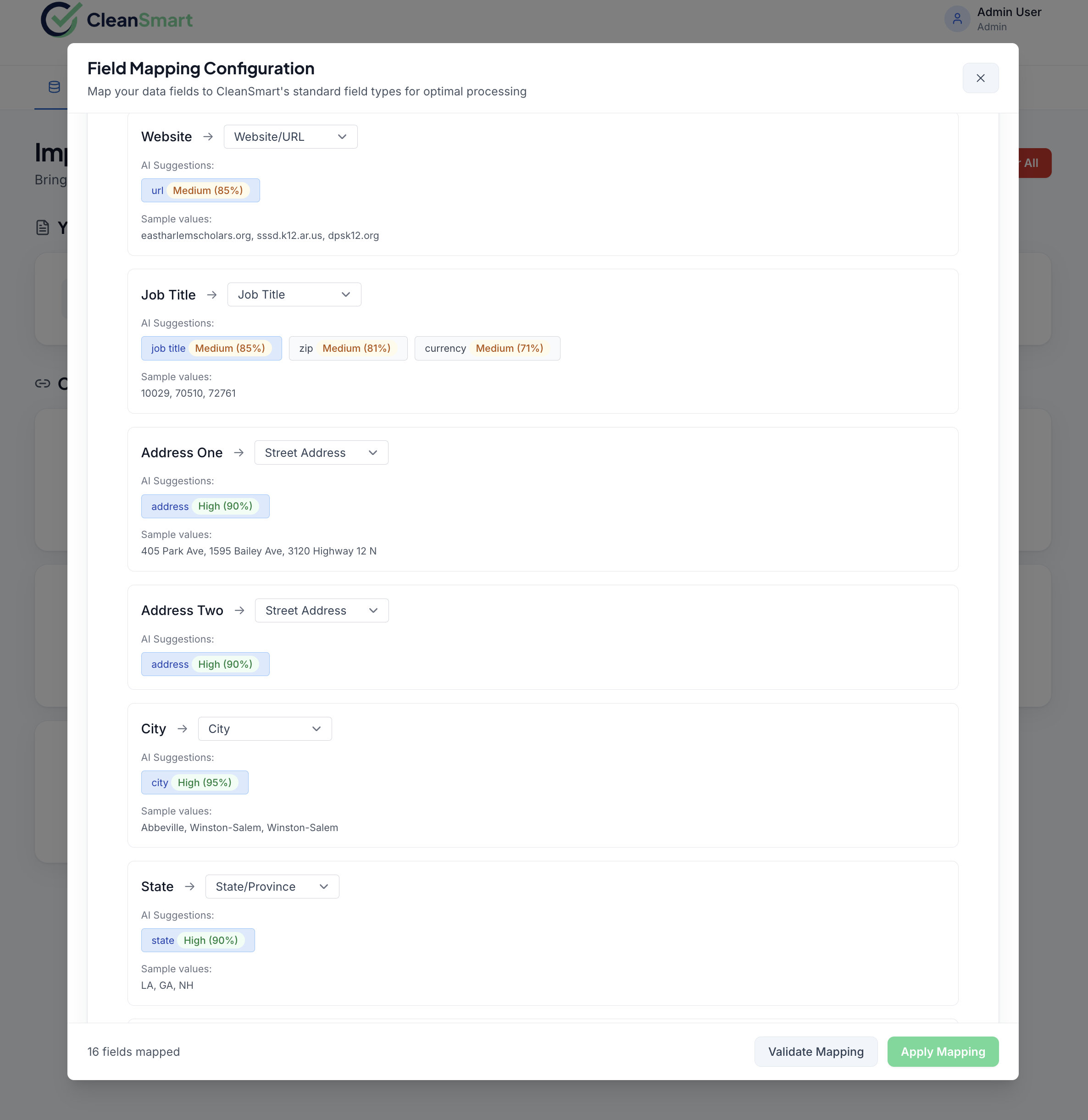
With the connection established, click Import next to either Contacts or Companies. CleanSmart pulls the data, auto-detects field types, and maps columns. Large accounts (50,000+ contacts) may take 1–2 minutes to import fully.
Refresh to keep your data current
After the initial import, click Refresh next to HubSpot Objects at any time to pull in the latest data. CleanSmart tracks the diff between runs so you only need to review new changes on subsequent cleaning passes.
Frequently asked questions
Can I import objects other than Contacts and Companies?
Why can't I connect? I get an error after entering my token.
crm.objects.contacts.read and crm.objects.companies.read in HubSpot's Private App settings. Also check for spaces at the start or end of the token when copying.How do I get cleaned data back into HubSpot?
How do I revoke CleanSmart's access to HubSpot?
Is my HubSpot data secure while in CleanSmart?
Can I set up automatic scheduled imports?
Other connector guides
CleanSmart connects natively to five data sources.