
Connect Klaviyo to CleanSmart
Import your Klaviyo subscriber profiles into CleanSmart for cleaning. Connect via Private API Key — no OAuth flow needed. Setup takes under 10 minutes.
What you'll need
- A CleanSmart account with integration permissions
- A Klaviyo account with access to create Private API Keys
- A Klaviyo Private API Key — find it under Account → Settings → API Keys
Setup steps
Open the Klaviyo integration card
In CleanSmart, go to Import & Sync and find the Klaviyo card. Click Connect. The card expands to show the API key input field.
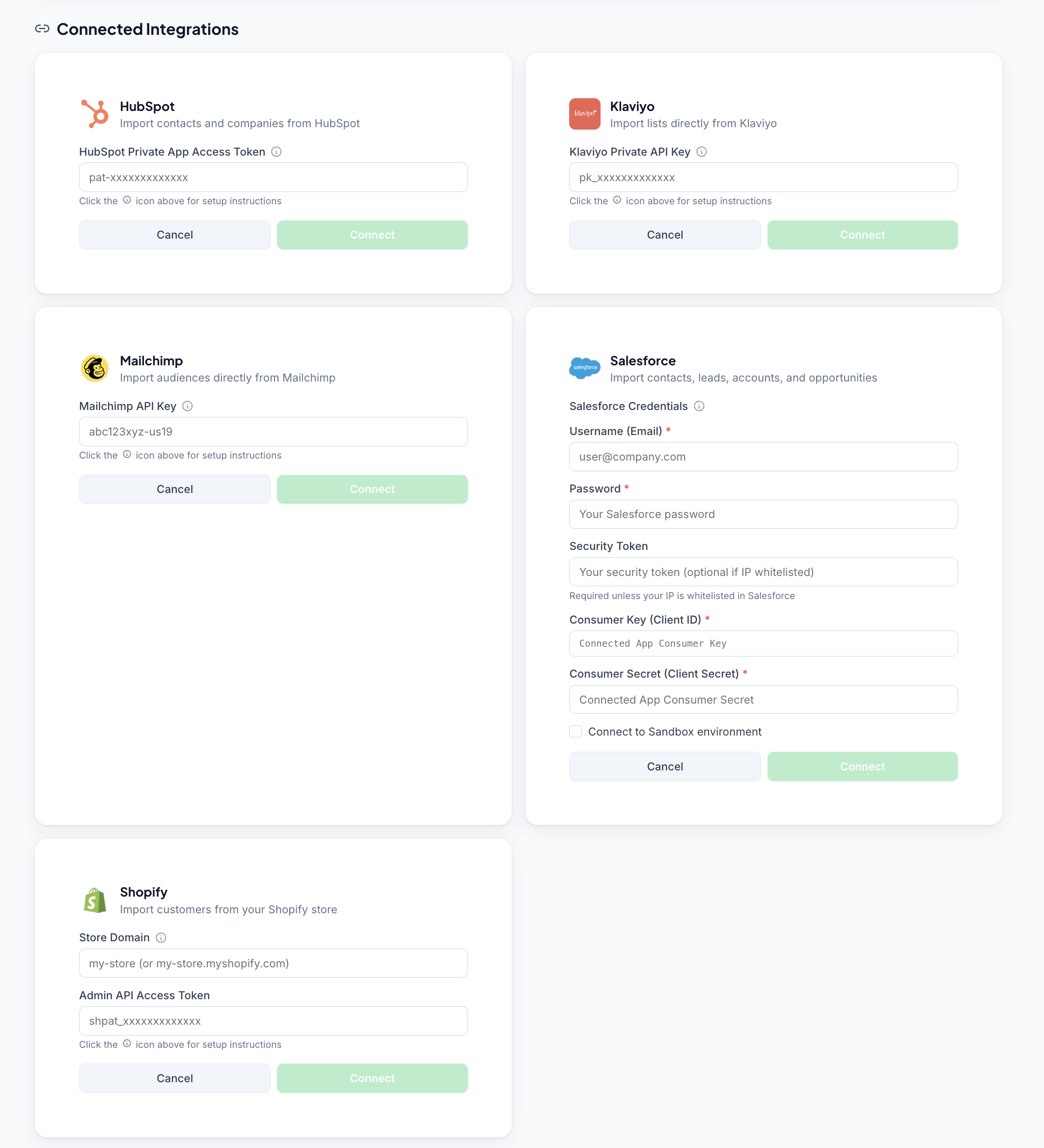
Retrieve your Klaviyo Private API Key
In Klaviyo, go to Account → Settings → API Keys and create a new Private API Key. Give it a descriptive name (e.g., "CleanSmart Import"). Copy the key immediately — Klaviyo only shows it once.
Enter your API key and connect
Paste your Klaviyo Private API Key into the field and click Connect. CleanSmart validates the key and confirms the connection with a green success message.
Map your data fields
Click Map Data next to the list or segment you want to import. CleanSmart detects field types and suggests mappings for email, phone, first name, last name, and custom properties. Confirm or adjust the mapping and click Map Data to finalize.
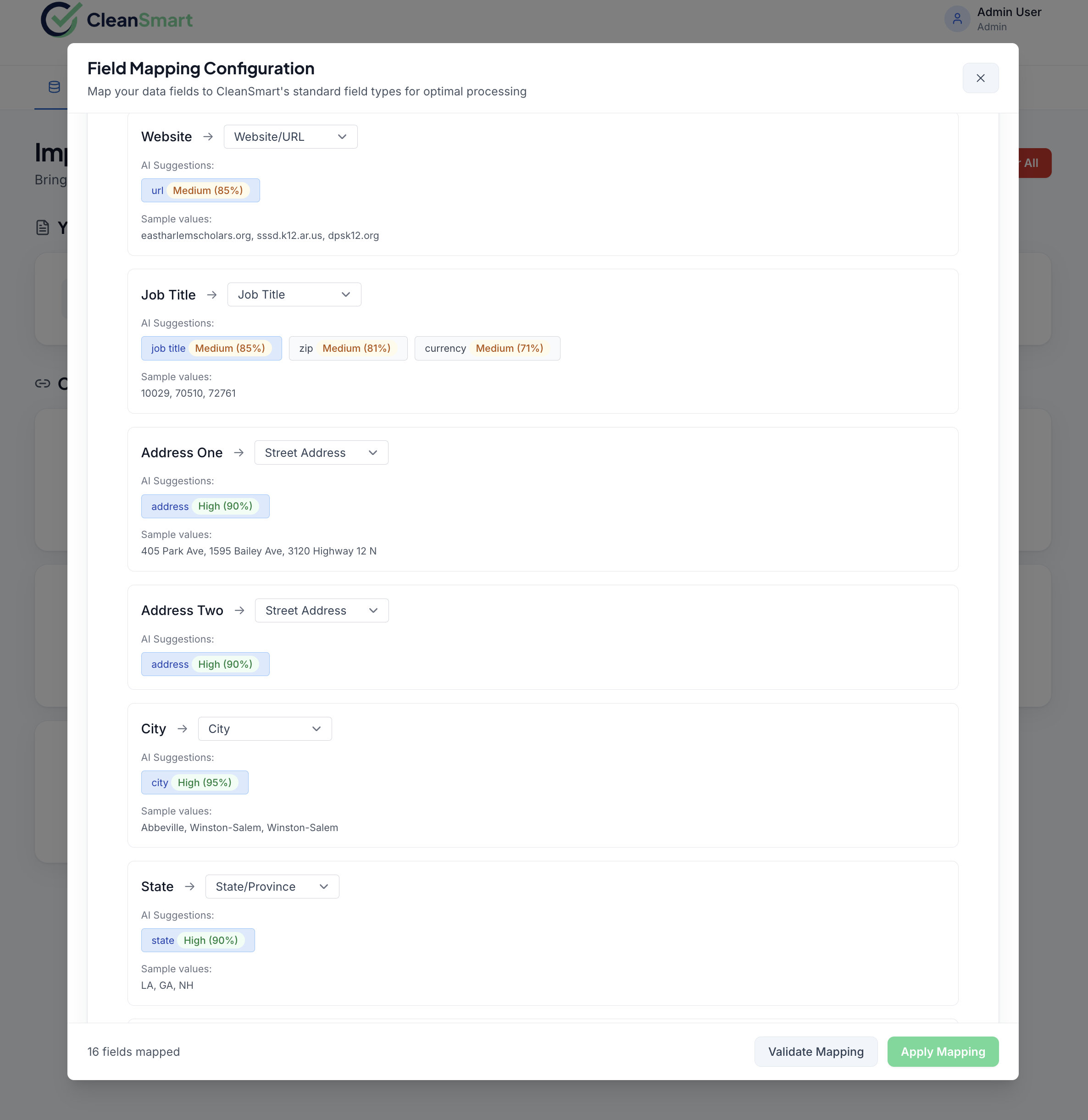
Confirm — a new data source entry appears
After mapping, a success notification confirms the import. Your Klaviyo list appears as a data source in CleanSmart. You can now run it through the cleaning pipeline (dedupe, format, fill, flag) and export the clean data.
Frequently asked questions
Why can't I find my Klaviyo Private API Key?
The Connect button isn't working after I enter my key.
Can I change my mapped data fields after the initial setup?
How often should I rotate my Klaviyo API Key?
What happens if my Klaviyo account details change?
Other connector guides
CleanSmart connects natively to five data sources.