Connect Salesforce to CleanSmart
Import your Salesforce Contacts, Leads, and Accounts into CleanSmart for cleaning, then download the cleaned records and a change log from the Export step. Setup uses a Salesforce Connected App plus your Salesforce login, and works with production orgs and sandboxes.
What you'll need
- A CleanSmart account with administrative access
- A Salesforce edition with API access (Enterprise, Unlimited, Performance, or Developer; Professional Edition needs the API add-on)
- A Salesforce user who can create Connected Apps, usually a System Administrator
- That user's Salesforce username, password, and security token
Setup steps
Open the Salesforce integration card in CleanSmart
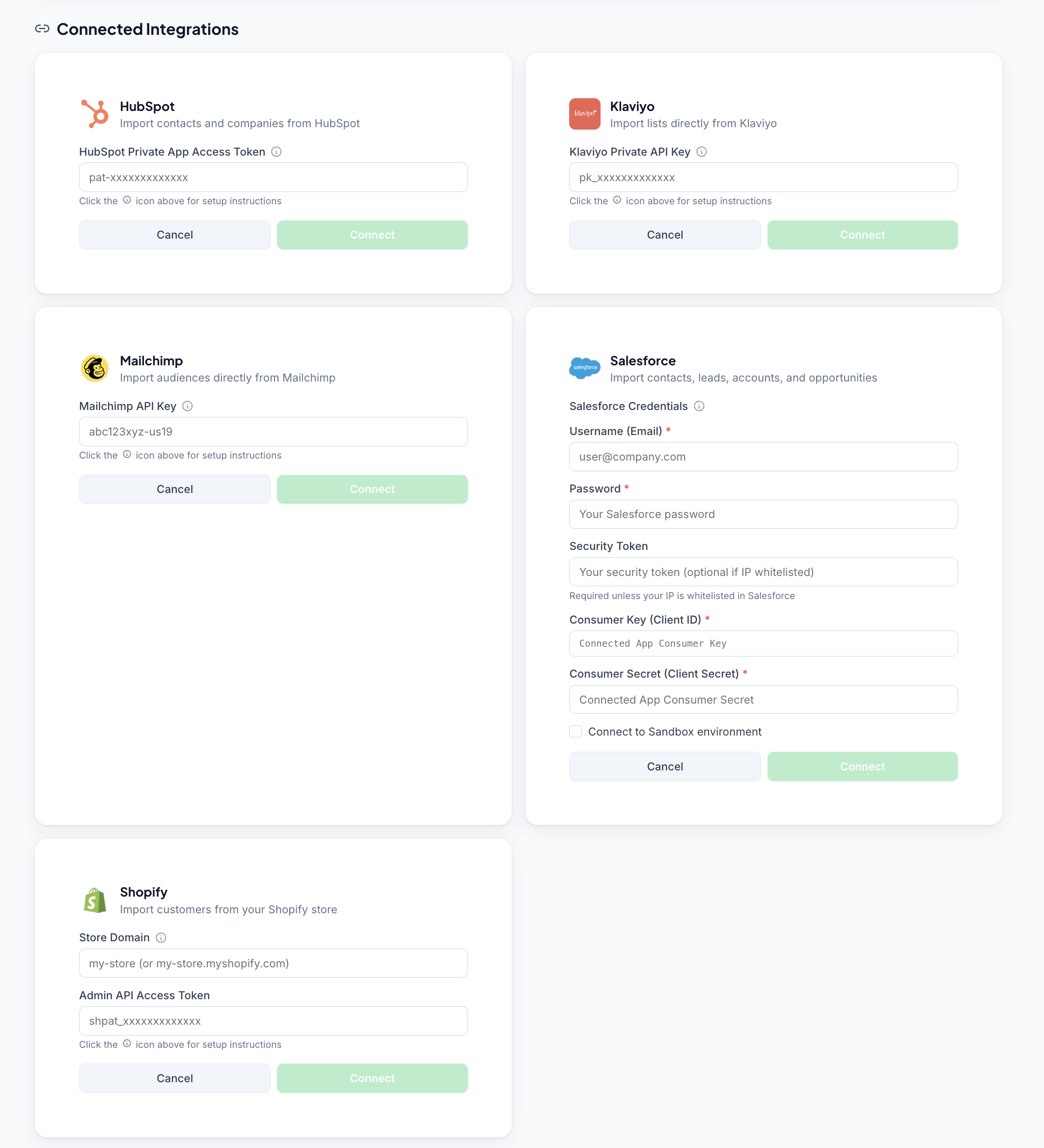
In CleanSmart, navigate to Import & Sync. Find the Salesforce card and click Connect. The card expands to show the credential fields and a setup checklist you can follow alongside this guide.
Create a Connected App in Salesforce
In Salesforce, go to Setup, search for App Manager in Quick Find, and click New Connected App. Enter an app name (for example, "CleanSmart") and a contact email, then check Enable OAuth Settings. Set the callback URL to any valid URL, such as https://localhost, and add two OAuth scopes:
Access and manage your data (api)Perform requests on your behalf at any time (refresh_token, offline_access)
Save the app, then copy its Consumer Key and Consumer Secret.
Get your Salesforce security token
In Salesforce, open your personal Settings and go to Personal → Reset My Security Token. Salesforce emails a new token to the address on your user record.
Enter your credentials and click Connect
Back in the CleanSmart Salesforce card, enter your Salesforce username (email), password, and security token, then paste the Consumer Key and Consumer Secret from your Connected App. If you're connecting a sandbox, check Connect to Sandbox environment. Click Connect. CleanSmart validates the credentials and shows a green confirmation message when the connection succeeds.
Import Contacts, Leads, or Accounts
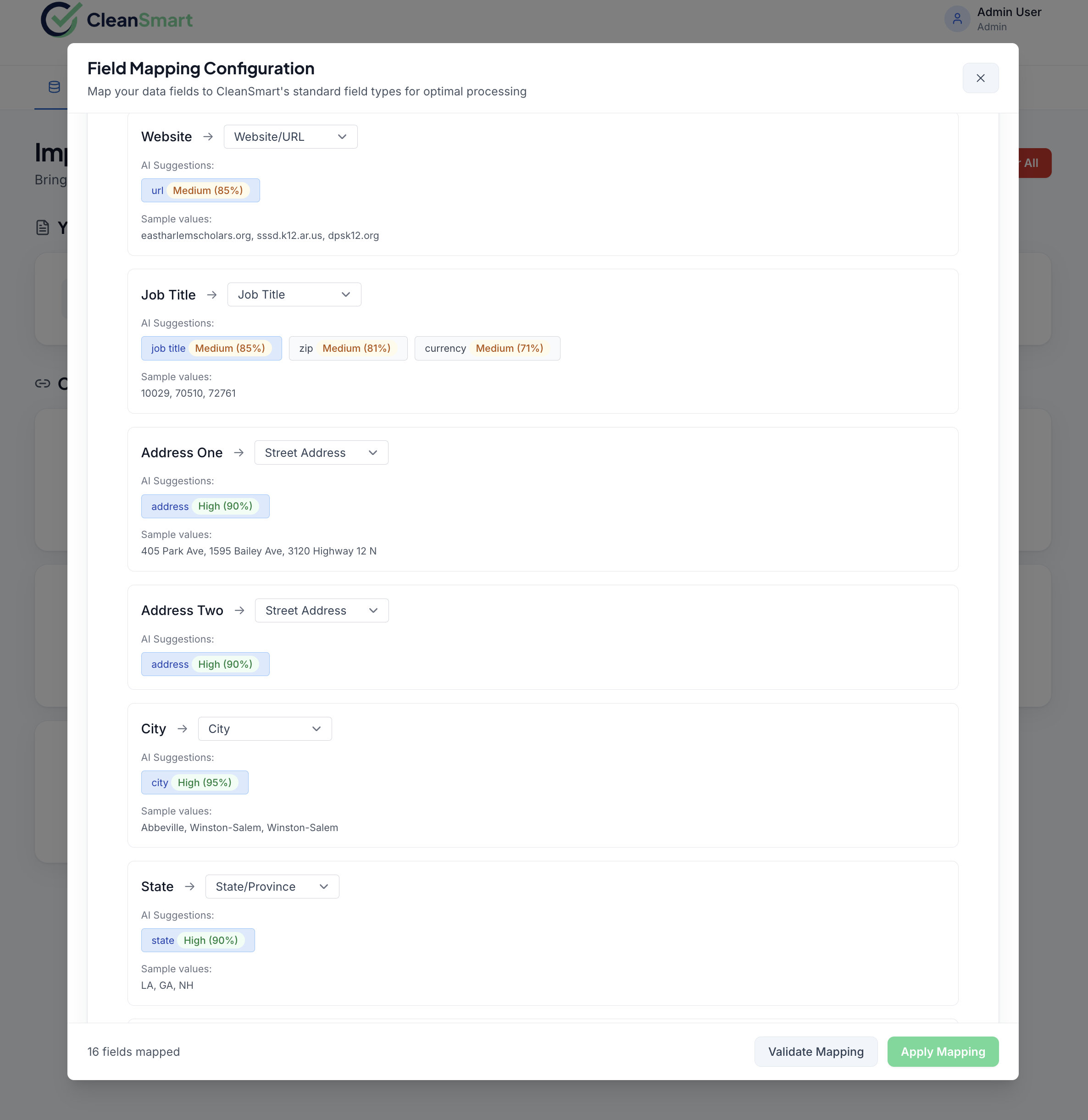
With the connection established, choose the Salesforce object you want to clean: Contacts, Leads, or Accounts. CleanSmart pulls the records, auto-detects field types, and suggests column mappings for you to confirm before cleaning starts.
Frequently asked questions
Which Salesforce objects can I import?
Which records will CleanSmart see?
Why can't I connect? I get an error after clicking Connect.
How do I get cleaned data back into Salesforce?
api scope for any API connection, but CleanSmart only reads from your org. Nothing changes in Salesforce until you import the file yourself.Can I connect a sandbox?
you@company.com.uat).How do I revoke CleanSmart's access to Salesforce?
Is my Salesforce data secure while in CleanSmart?
Other connector guides
CleanSmart connects natively to five data sources.