Connect Shopify to CleanSmart
Import your Shopify customer data into CleanSmart for deduplication, address standardization, email normalization, and phone formatting. Connect via your Shopify Admin API Key in under 10 minutes.
What you'll need
- A CleanSmart account with integration permissions
- A Shopify store with staff or admin access
- A Shopify Admin API Access Token — created under Settings → Apps and sales channels → Develop apps
Setup steps
Open the Shopify integration card
In CleanSmart, go to Import & Sync and locate the Shopify card. Click Connect to expand it. You'll need your Shopify store URL (e.g., your-store.myshopify.com) and an Admin API Access Token.
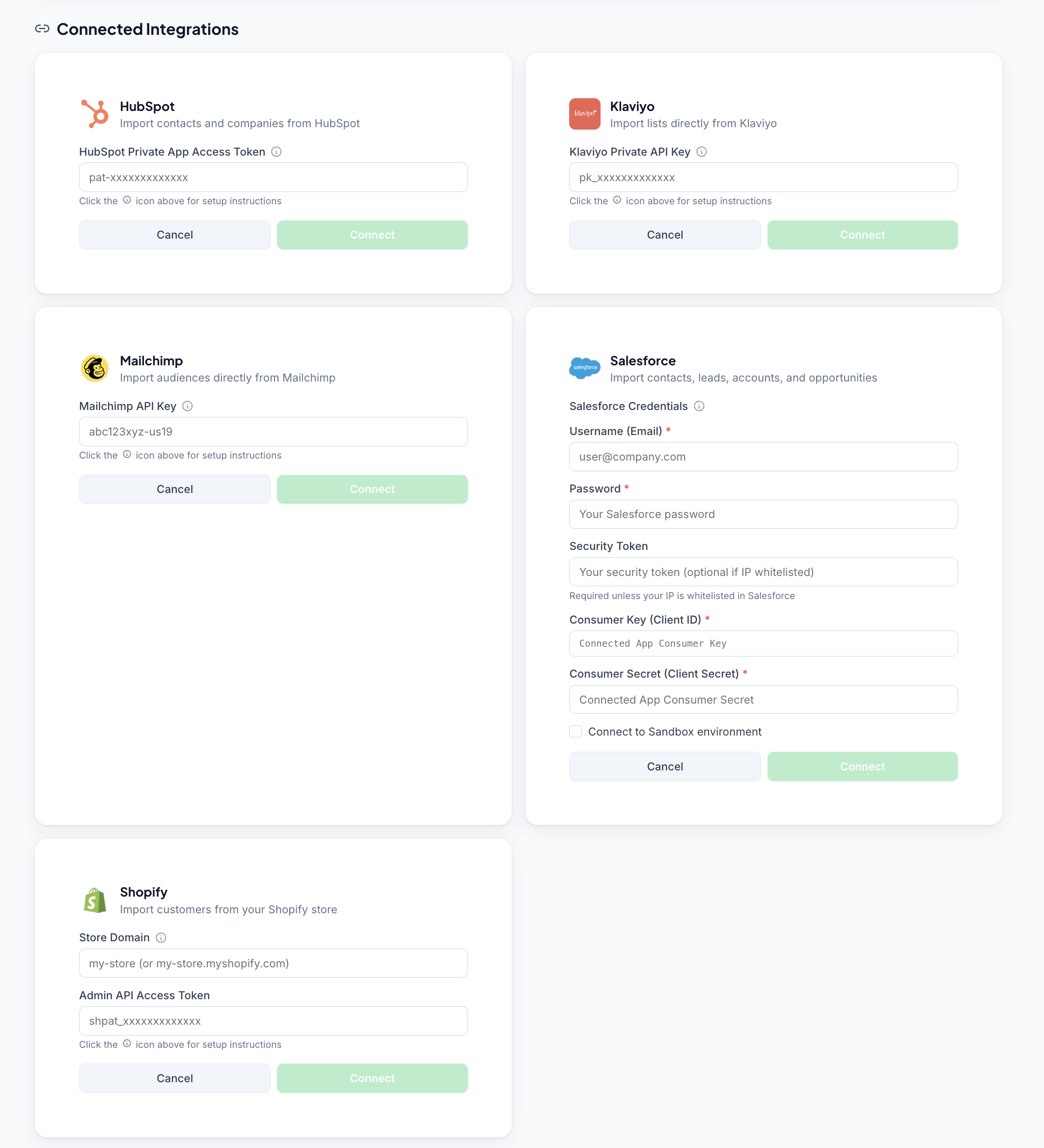
Create a Shopify Admin API Access Token
In Shopify Admin: go to Settings → Apps and sales channels → Develop apps → Create an app. Name it "CleanSmart", click Configure Admin API scopes, and enable read_customers and read_orders. Click Install app and copy the Admin API access token.
Enter your store URL and token, then connect
Back in CleanSmart, enter your store URL and paste the Admin API Access Token. Click Connect. CleanSmart validates the credentials and confirms the connection with a green success message.
.myshopify.com URL, not your custom domain. If your store is greatwidgets.com, enter greatwidgets.myshopify.com.Select what to import and map fields
Choose Customers, Orders, or both. CleanSmart auto-detects field types — name, email, phone, address, order values — and suggests column mappings. Confirm or adjust the mapping, then click Import.
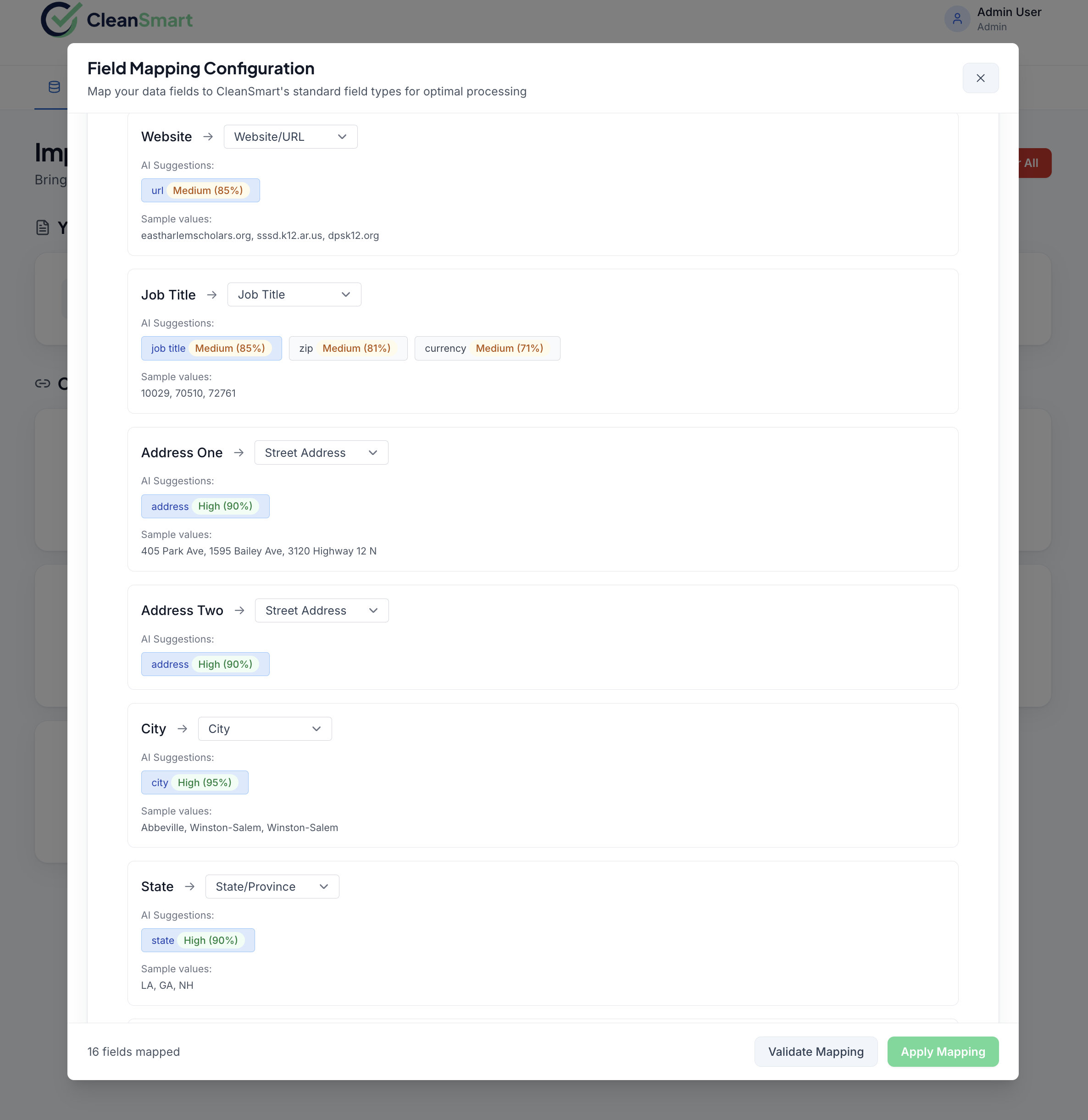
Run the pipeline and export clean customer data
Your Shopify data is now a data source in CleanSmart. Run the cleaning pipeline — deduplication, address standardization, phone normalization, anomaly detection — review the changes, and download the cleaned records with a change log from the Export step to import back into Shopify.
Frequently asked questions
Can I import both Customers and Orders in the same session?
I'm getting a 403 Unauthorized error when connecting.
read_customers is checked. Re-install the app to regenerate the token with the updated scopes.Will pushing cleaned data back update my Shopify records?
write_customers scope on your Admin API token. Push-back updates field values on existing customer records — it does not create new records or affect order history.How do I handle stores with 100,000+ customers?
How do I revoke CleanSmart's Shopify access?
Other connector guides
CleanSmart connects natively to five data sources.